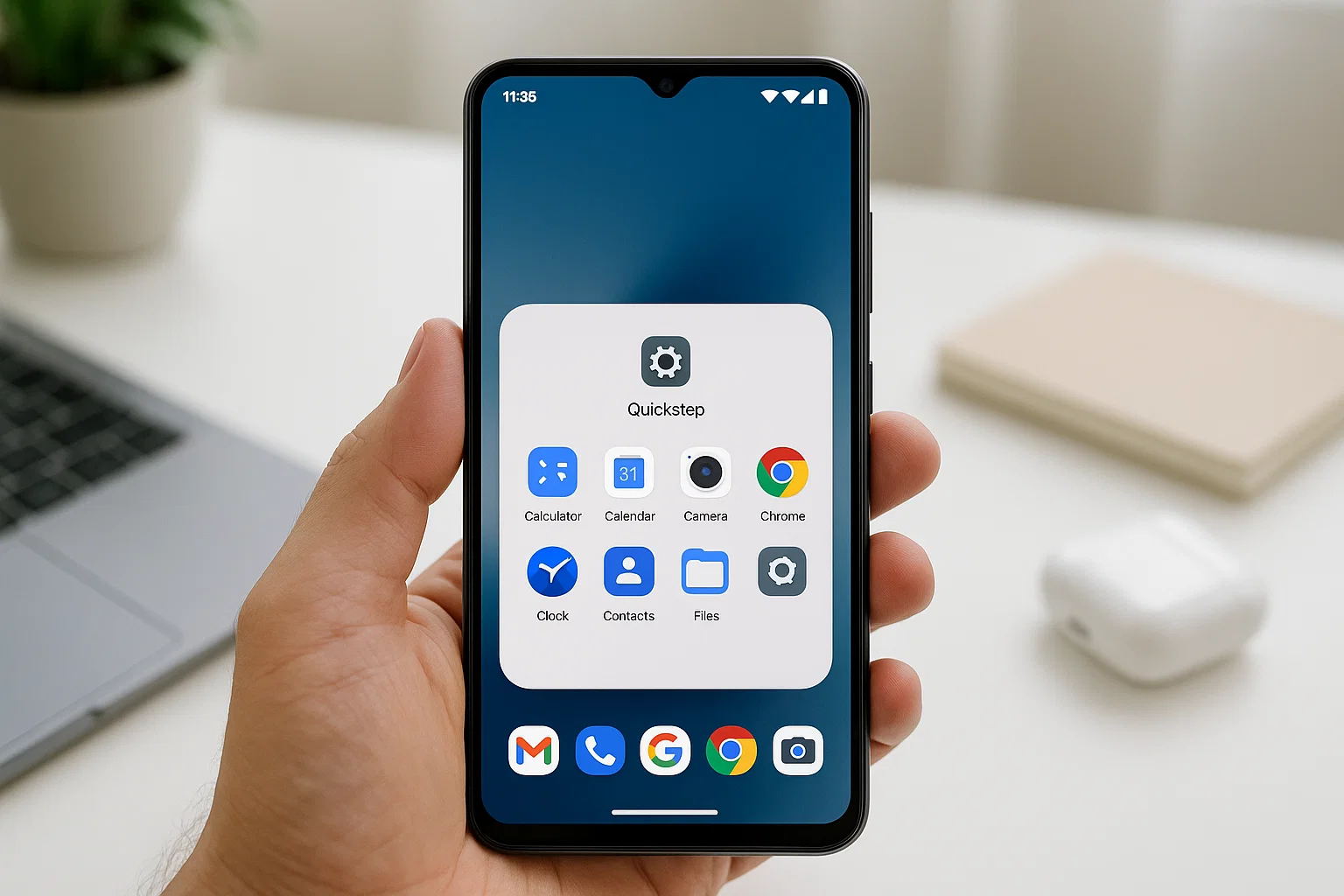
Here’s what matters: Quickstep is not a virus. It’s a core Android launcher component, designed to manage your phone’s home screen, navigation gestures, app drawer, and multitasking layout. But depending on your device Google Pixel, Samsung, Xiaomi, Oppo it behaves slightly differently.
Let’s unpack everything about Quickstep so you know exactly what it is, how it works, and how to manage or replace it if you want a different launcher experience.
What Is the Quickstep App on Android?
Quickstep is the default launcher system app used on many Android phones. A launcher is basically the interface that controls how you interact with your device your home screen, widgets, app icons, and how apps open or switch.
Quickstep was introduced by Google as part of the Pixel Launcher project, but it has since become a standardized launcher framework integrated into Android versions starting from Android 9 (Pie) onward.
In simple terms, Quickstep is the brain that makes your phone’s interface smooth and consistent. It’s responsible for:
- The home screen layout
- Recent apps overview (when you swipe up and hold)
- App suggestions at the bottom of the screen
- Navigation gestures and transitions
So when you switch between apps or swipe up to see recent ones, Quickstep is the one doing all that behind the scenes.
Why Is Quickstep on My Phone?
Quickstep appears because it’s part of Android’s system-level user interface. Every Android device needs a launcher, and Quickstep is Google’s official implementation.
Here’s where it gets interesting each phone brand tweaks it differently:
- Google Pixel phones: Quickstep is the Pixel Launcher itself. It’s tightly integrated with Google Assistant, Discover feed, and adaptive themes.
- OnePlus and Oppo: They modify Quickstep to blend with OxygenOS or ColorOS while keeping the same multitasking core.
- Samsung: Uses its own One UI Home Launcher, but parts of Quickstep’s code still manage gesture navigation behind the scenes.
- Xiaomi and Redmi: MIUI uses a different launcher, but on newer Android bases, some Quickstep framework components still exist to handle app switching.
So even if you don’t “see” Quickstep on the surface, it might still be part of your system architecture.
Is Quickstep Safe to Use?
Absolutely. Quickstep is 100% safe. It’s a Google-developed system app, not a third-party installation. It doesn’t spy, collect data secretly, or harm your device.
Because it’s a launcher, it only handles visual and navigational functions it can’t access sensitive data like your messages, contacts, or files.
That said, here’s a key thing to remember: you might notice Quickstep using battery or storage, which is normal since it’s always running in the background as part of your Android interface. It’s similar to how iOS uses “SpringBoard” for navigation it’s a permanent background process.
What Are Quickstep’s Main Features?
Even though you can’t “open” Quickstep directly, it powers several important Android features that make the OS smooth and modern.
Here’s what it does under the hood:
| Feature | Description |
|---|---|
| App Drawer Management | Controls how your apps are listed, searched, and sorted. |
| Gesture Navigation | Handles swiping up for multitasking, left/right for switching apps. |
| Recent Apps Overview | Displays the cards you see when switching apps. |
| Google Feed Integration | On Pixel phones, it connects with the Discover feed on the home screen. |
| Adaptive Icons & Themes | Manages shape, colour, and dynamic appearance of icons. |
| Animations & Transitions | Controls how apps open and close for smoother visual flow. |
So while it looks invisible, Quickstep’s role is massive it’s the foundation of your phone’s “look and feel.”
Can You Delete or Disable the Quickstep App?
This is where most people get curious (and sometimes, frustrated). Because Quickstep is a system app, Android doesn’t let you uninstall or disable it easily. If you try, you’ll get a warning that it’s essential for the system to function.
Why? Because without a launcher, your Android wouldn’t know how to display your home screen or apps it would literally be a blank screen.
However, there are workarounds depending on your comfort level.
Option 1: Use Another Launcher (Safest)
The easiest and safest option is to install another launcher like Nova Launcher, Microsoft Launcher, or Niagara Launcher. Once installed:
- Open Settings.
- Go to Apps > Default Apps > Home App.
- Choose your preferred launcher (e.g., Nova Launcher).
This doesn’t delete Quickstep it simply overrides it. Quickstep stays in the system but no longer runs actively.
Option 2: Disable via ADB (Advanced)
If you’re tech-savvy, you can temporarily disable Quickstep using Android Debug Bridge (ADB). But note this can cause issues with navigation gestures or app switching, especially on newer Android versions.
Steps:
- Enable Developer Options on your phone.
- Turn on USB Debugging.
- Connect your phone to your PC.
- Open Command Prompt and type:
This disables Quickstep (package name may vary). But again don’t do this unless you’re confident, as it might affect core functionality.
How Quickstep Works Across Different Android Brands
Let’s break it down by major manufacturers so you know what’s going on under the hood.
Google Pixel
Quickstep is the Pixel Launcher itself. It integrates with Google Assistant, Discover, and app suggestions at the bottom of the screen. Removing or disabling it isn’t recommended at all it’s the soul of Pixel’s interface.
Samsung
Samsung’s One UI Home replaces most Quickstep elements, but part of Quickstep’s framework handles gesture transitions. It’s not visible, and you can’t disable it without breaking navigation.
OnePlus and Oppo
In OxygenOS and ColorOS, Quickstep merges with their customized launcher system. The multitasking screen you see cards layout, clear-all button is powered by Quickstep’s backend.
Xiaomi, Redmi, and Poco
MIUI uses its own launcher, but Android’s Quickstep components help manage gestures (like swipe up for recents). That’s why even if you install a new launcher, MIUI sometimes keeps Quickstep active in the background.
Motorola and Nokia
These brands use Android One or near-stock Android, where Quickstep runs nearly identical to the Pixel version. You’ll find it listed in your system apps.
Can Quickstep Be Replaced Without Root?
Yes and no.
You can replace its functionality by using a third-party launcher, but you can’t completely remove Quickstep unless you root your device. Rooting allows deeper access, but it voids warranties and can break system updates.
If you just want a cleaner or more custom look, using an external launcher like Nova Launcher or Smart Launcher is a better idea. They run smoothly alongside Quickstep without conflict.
Why Quickstep Consumes Battery or RAM
You might see Quickstep listed in your battery usage or memory stats. That’s because it’s always running it handles your phone’s UI 24/7.
It’s not unusual for it to appear under Settings > Battery > App usage. It’s not draining battery maliciously; it’s just doing its job keeping your interface active.
If you see excessive consumption:
- Restart your phone (it clears temporary cache).
- Avoid heavy live wallpapers.
- Limit background widgets.
These steps usually bring Quickstep’s battery use down.
What Happens If You Remove Quickstep?
If you somehow force-uninstall or disable Quickstep without setting up an alternate launcher, you’ll be left with a non-functional home screen. The device won’t know how to display icons or run gestures.
In short, your phone becomes unusable until you reinstall or re-enable a launcher.
This is why Android keeps Quickstep protected as a system component it prevents you from accidentally breaking your interface.
Quickstep vs. Other Launchers
| Launcher | Type | Key Features | Best For |
|---|---|---|---|
| Quickstep | System | Smooth performance, gesture navigation | Default experience |
| Nova Launcher | Third-party | Highly customizable, fast, backup options | Personalisation lovers |
| Microsoft Launcher | Third-party | Microsoft ecosystem integration | Business users |
| Niagara Launcher | Third-party | Minimalist, clean design | Simplicity seekers |
| Smart Launcher 6 | Third-party | Adaptive layouts, gestures | Stylish customisation |
Quickstep wins on stability and integration, but if you love themes or advanced shortcuts, others might suit you better.
Troubleshooting Common Quickstep Issues
1. “Quickstep keeps stopping” error
Try clearing cache and data:
- Go to Settings > Apps > Quickstep.
- Tap Storage & Cache.
- Clear both cache and data.
Restart your device.
2. Laggy or frozen home screen
This can happen after updates. Restart the device, or set Quickstep as the default launcher again in Settings > Default Apps.
3. Can’t find Quickstep in Apps list
Tap the three-dot menu in the Apps list and enable Show System Apps. It should appear there.
Future of Quickstep in Android
Google continues to refine Quickstep with each Android release. It’s now deeply linked with Material You design, gesture navigation, and AI-driven suggestions.
In Android 14 and 15, Quickstep is expected to handle even smarter app predictions, smoother animations, and better integration with foldable devices.
That means it’s not going away anytime soon it’ll just keep getting better.
Should You Keep or Replace Quickstep?
If your phone runs smoothly and you don’t crave customisation, keep Quickstep. It’s lightweight, secure, and stable.
If you want themes, gestures, icon packs, or productivity shortcuts, install a third-party launcher and make it your default. It’ll sit over Quickstep without causing issues.
Bottom line: don’t delete it. Manage it smartly.
Final Thoughts
The Quickstep app might sound mysterious, but it’s just the quiet engine driving your Android’s user interface. It’s safe, essential, and part of modern Android’s architecture especially on Pixel and stock-based phones.
While you can’t remove it entirely, you can control your launcher experience with third-party options that give you more design freedom.
So next time you see Quickstep in your system list, don’t panic it’s not spyware; it’s your Android’s invisible assistant keeping everything running smoothly.

Alex WebPro, your guide to web mastery. Expert tips on WordPress, SEO, monetization, and the best in design trends and themes.