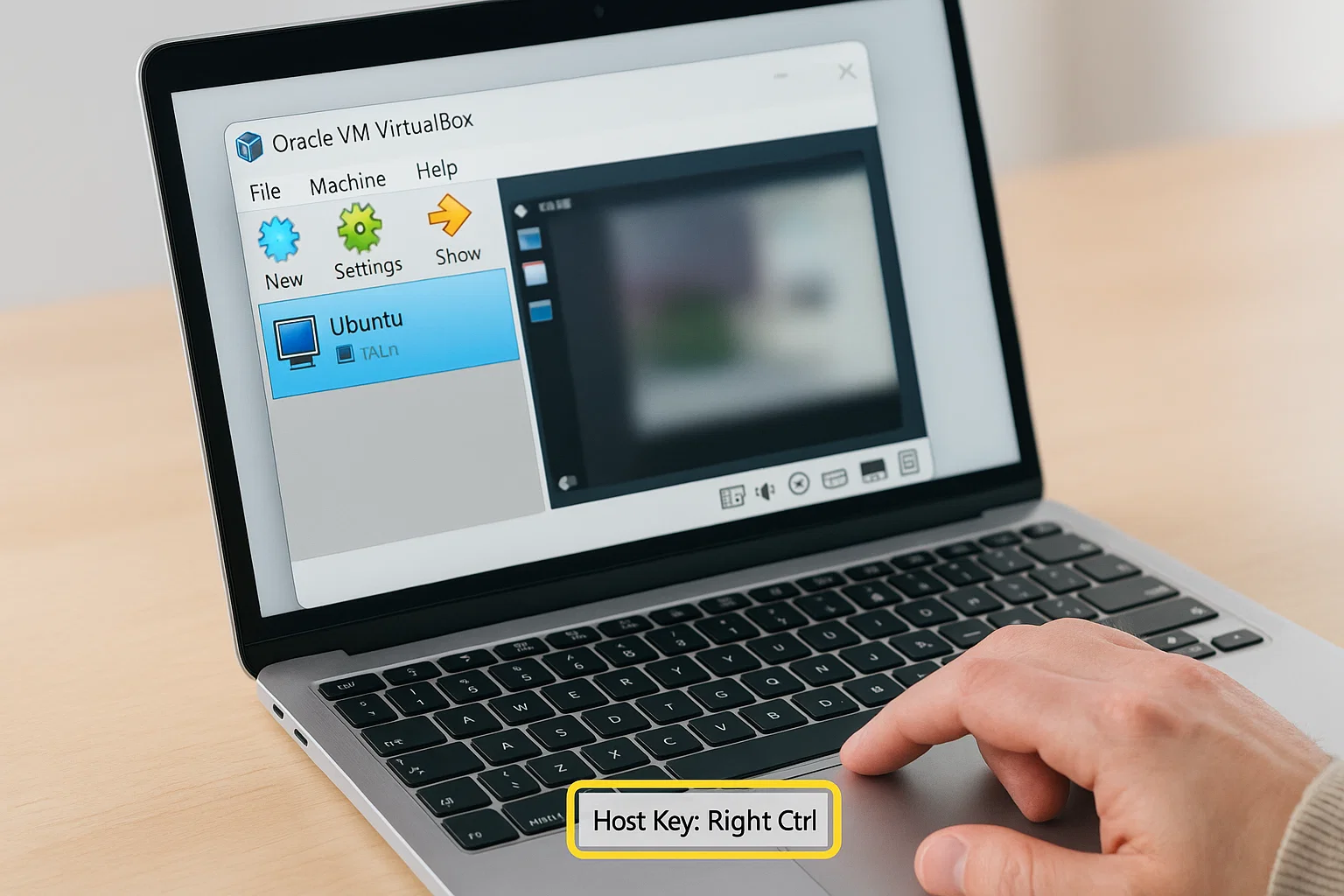
 If you’ve ever tried using VirtualBox and suddenly couldn’t move your mouse outside the virtual machine window, you’ve already met the mysterious “Host Key.” It’s one of those things that confuses beginners but becomes second nature once you understand it.
Let’s break it all down what the Host Key in VirtualBox actually does, why it matters, how to change it, and how to avoid those frustrating stuck-keyboard moments.
What Is the Host Key in VirtualBox?
In simple terms, the host key is your shortcut to control the virtual machine window. It acts as a bridge between your real computer (the host) and the virtual computer (the guest) running inside VirtualBox.
Imagine you’re inside a virtual machine and your mouse or keyboard is locked within that window. You can’t click on your desktop or switch to another app without closing the VM frustrating, right?
That’s where the host key comes in. Pressing it instantly releases your mouse and keyboard, returning control to your main computer.
By default, the host key is usually:
- Right Ctrl on Windows and Linux hosts
- Left Command (⌘) on macOS hosts
However, this can vary depending on your keyboard setup or version of VirtualBox.
Why the Host Key Exists
VirtualBox tries to give the virtual machine as much control as possible. When you’re running another operating system say Windows inside Ubuntu VirtualBox “captures” your mouse and keyboard to make the experience feel real.
But without the host key, you’d have no easy way to escape that virtual environment. So the host key is basically your “exit” or “toggle” command.
You use it to:
- Release input control (mouse, keyboard) from the guest system
- Access VirtualBox menus while the VM is full-screen
- Toggle between full-screen and windowed mode
- Take screenshots or pause the VM (when used with other shortcuts)
In short, it’s the master control key for your virtual machine environment.
How to Identify Your Host Key in VirtualBox
If you’re unsure what your host key is, finding it takes just a few seconds:
- Open VirtualBox.
- Go to the top menu bar and click File → Preferences (or press Ctrl + G).
- Navigate to the Input tab.
- You’ll see a section called Virtual Machine → Host Key Combination.
- The assigned key is displayed there usually “Right Ctrl.”
That’s your current host key.
If you prefer something else (maybe your keyboard doesn’t even have a right Ctrl key), you can easily change it. Let’s see how.
How to Change the Host Key
Changing the host key is useful if the default conflicts with another shortcut, or if your keyboard layout makes it awkward to use.
Here’s how to change it:
- Open VirtualBox.
- Click on File → Preferences.
- In the left panel, click Input.
- Under Virtual Machine, look for Host Key Combination.
- Click on it, then press the key (or key combo) you want as your new host key.
- Click OK to save.
You can assign combinations too for example, Ctrl + Space or Alt + Shift. Just make sure it’s not something your operating system already uses.
Tip: Test it by starting any virtual machine and pressing your new key once. You should see the input released immediately.
Understanding “Host” in VirtualBox
To really grasp what the host key does, you should also understand what “host” and “guest” mean in VirtualBox.
- Host: This is your real computer the physical system running VirtualBox.
Example: Your Windows 11 laptop. - Guest: This is the virtual machine running inside VirtualBox the simulated system.
Example: Ubuntu Linux running inside your Windows 11 laptop.
The host key acts as a control signal between host and guest, letting you move input back and forth seamlessly.
Common Uses of the Host Key
Let’s look at some practical situations where you’ll use the host key regularly.
1. Releasing Mouse and Keyboard
When your pointer gets “stuck” inside the VM, press the host key once to release it.
It’s the simplest use but also the most common one.
2. Full-Screen Mode Toggle
You can enter full-screen mode in VirtualBox using:
This gives your guest operating system the entire screen space. Press it again to exit full-screen mode.
3. Seamless Mode
Seamless Mode merges your guest OS windows with your host desktop. Activate it using:
It makes the guest applications appear as if they’re running directly on your main OS.
4. Auto-Capture Toggle
If you don’t like VirtualBox automatically capturing your keyboard every time, toggle that behaviour by pressing:
Then open the VM Menu → Input → Keyboard → Auto-capture Keyboard to configure it permanently.
5. Pausing the Virtual Machine
Need to quickly pause your VM without shutting it down?
That will freeze the current state until you’re ready to resume.
What If the Host Key Doesn’t Work?
Sometimes, pressing the host key does nothing usually because another application or your OS is overriding it.
Here’s how to troubleshoot:
1. Check Keyboard Shortcuts on Host OS
For example, on Windows, the Right Ctrl key can sometimes be used by accessibility tools or external programs.
Try changing it to another key (like Left Alt or Ctrl + Space).
2. Verify VirtualBox Input Settings
Open File → Preferences → Input and confirm the host key assignment.
If it’s blank or shows “None,” click it and assign a new one.
3. Check Guest Additions
Install VirtualBox Guest Additions inside your virtual machine for smoother integration.
Without it, your keyboard and mouse may behave unpredictably.
4. Restart VirtualBox
Simple but effective. Close all instances, restart VirtualBox, and test again.
Host Key vs. Guest Shortcuts
One confusion new users have is mixing up guest shortcuts with host key combinations.
Let’s make it clear:
- Host key shortcuts are handled by VirtualBox before the guest OS sees them.
- Guest shortcuts (like Ctrl + Alt + Delete) are handled inside the virtual OS.
So when you press Host + Delete, it doesn’t open Task Manager on your host it opens it inside the guest OS.
Example Shortcut Comparison
| Task | Shortcut | Works On |
|---|---|---|
| Release mouse and keyboard | Host key (alone) | Host |
| Enter full-screen mode | Host + F | VirtualBox |
| Switch to seamless mode | Host + L | VirtualBox |
| Send Ctrl + Alt + Delete to guest | Host + Delete | Guest |
| Pause virtual machine | Host + P | VirtualBox |
| Show VirtualBox menu | Host + Home | Host |
What Happens If You Forget the Host Key
It’s easy to panic when your mouse gets trapped and you forget the key. Don’t worry there’s a quick fix.
When the virtual machine window is active, look at the bottom-right corner of the VirtualBox window.
You’ll see a small text label that says something like:
“Right Ctrl” this indicates the current host key.
If you still can’t release the cursor, you can force-quit the VM by pressing Alt + F4 or switching windows with Alt + Tab (on the host).
The Host Key on Laptops
If you’re using a laptop, you might not have a dedicated Right Ctrl key. That’s common, especially on compact keyboards or MacBooks.
In that case, reassign your host key to something you can easily press like Left Ctrl, Caps Lock, or even Fn + Space.
You can do this via:
Just remember: don’t choose a combination you use frequently in other programs.
Advanced Tip: Using External Keyboards
If you often plug in or remove external keyboards, VirtualBox might occasionally forget your host key mapping.
To prevent this:
- Set your host key to a common key (like Left Alt).
- Avoid keys that behave differently on laptop and external layouts.
- Recheck your input settings whenever you change hardware.
What Is the Meaning of “Host Key”?
Technically, “host key” refers to any special key combination recognised by the host software in this case, VirtualBox to manage control and interaction between the physical and virtual systems.
It’s like a remote control button that always belongs to your real computer, not the simulated one.
The Host Key and Virtual Machine Performance
The host key doesn’t directly affect performance it’s purely for control. However, efficient use of it can make your workflow faster.
Think of these examples:
- Quickly toggling full-screen to check files on your desktop.
- Pausing a VM without shutting it down.
- Instantly switching between multiple VMs using different host key shortcuts.
It’s a small detail that saves time and frustration once you use VirtualBox regularly.
Customising Host Key Behaviour
If you’re comfortable tweaking VirtualBox deeper, you can adjust how it handles key combinations globally.
From the main window:
- Click File → Preferences → Input.
- You’ll see a list of all global shortcuts.
- Scroll through and change the ones you use most often (like full-screen or pause).
This flexibility helps when you run several VMs or work across multiple operating systems.
Frequently Asked Questions
Which key is the host key?
By default, it’s Right Ctrl on Windows and Linux hosts, or Left Command (⌘) on macOS. You can confirm it in File → Preferences → Input.
What is a host in VirtualBox?
The “host” is your main computer the one running VirtualBox. The “guest” is the virtual machine you’ve installed inside it.
What is the meaning of host key?
It’s the special key used to control your virtual machines to release the mouse, toggle full-screen, or access VirtualBox features while running a VM.
What is the host key in a laptop?
On laptops, it may not exist as a physical key (like “Right Ctrl”). You can reassign it to any convenient key combination using VirtualBox preferences.
Quick Host Key Shortcuts Reference
| Function | Shortcut |
|---|---|
| Release mouse and keyboard | Host key |
| Toggle full-screen mode | Host + F |
| Switch to seamless mode | Host + L |
| Take a screenshot | Host + E |
| Pause VM | Host + P |
| Show VM menu | Host + Home |
| Send Ctrl+Alt+Delete | Host + Delete |
You can always customise these through File → Preferences → Input.
Pro Tips for Beginners
- Always install Guest Additions. It makes the mouse move seamlessly without constant host key use.
- Use host key shortcuts instead of the menu it’s faster.
- Change the host key early if your keyboard layout doesn’t fit the default.
- Remember the icon hint at the bottom-right corner; it’s your quick guide in emergencies.
Bottom Line
The Host Key in VirtualBox is small but mighty. It’s the one control that makes your virtual experience smooth, giving you power to jump between your real and virtual worlds effortlessly.
Once you know it and maybe customise it you’ll never get “trapped” inside a VM window again.
And if you’re serious about mastering WordPress, hosting, or other virtual setups, try using a Paraphrasing Tool

Alex WebPro, your guide to web mastery. Expert tips on WordPress, SEO, monetization, and the best in design trends and themes.